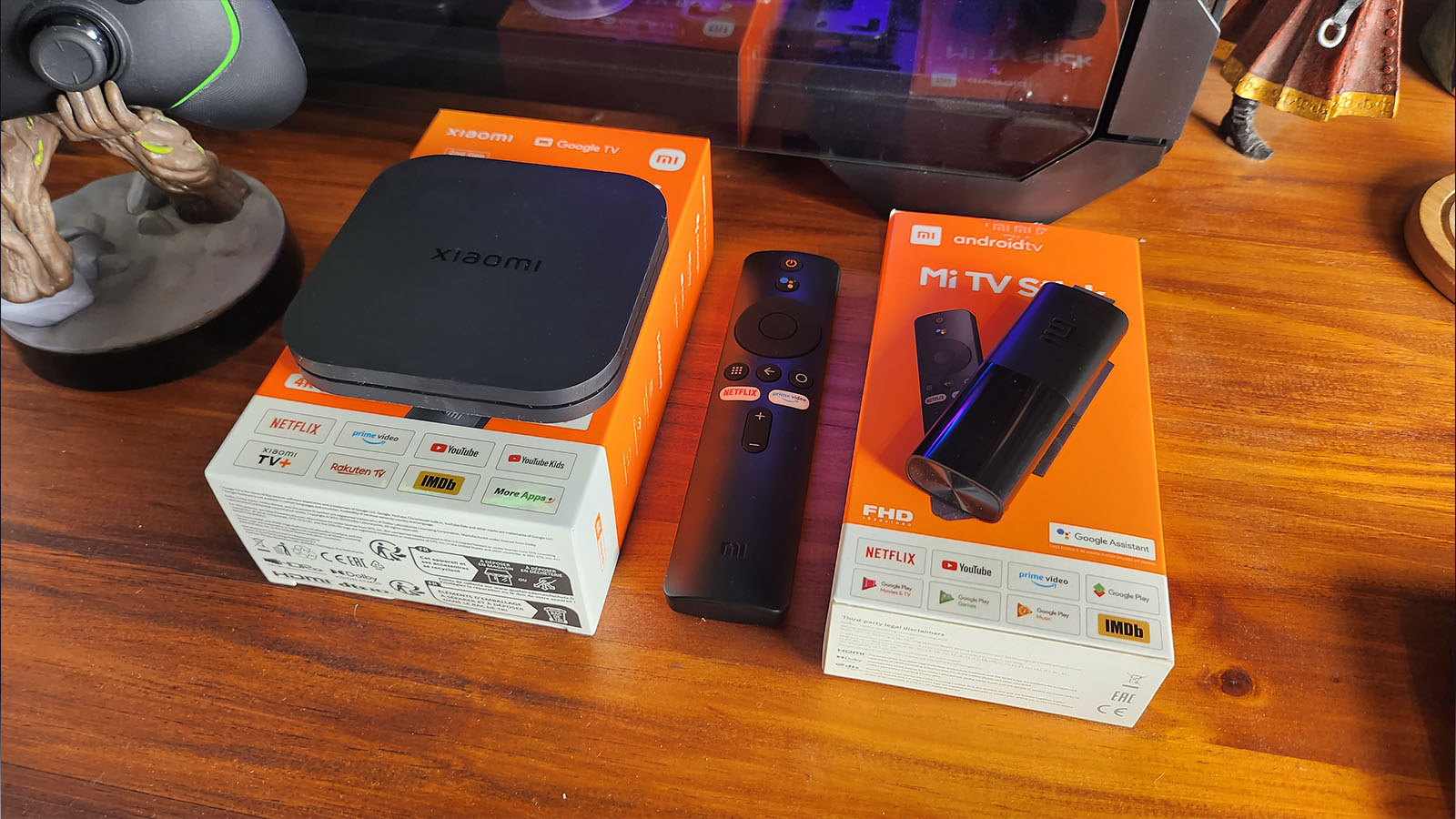
Watching anything you want with the single click of a button has become the norm for most of us on this rock. However, navigating the multitude of different devices, the various streaming services, and even the operating system on your so-called smart TV can easily turn Netflix and chill, into bye-bye Phil.
Enter the Smart TV devices from Xiaomi.
I own a Smart TV that has built-in apps, a PlayStation console that has a few more apps, a Chromecast and then my PC which connects to my TV via an app that actually doesn’t work. All this means is that I just end up streaming through an app on my phone and then casting to the TV. You can quickly see how this becomes a nightmare.
While I have been very aware of Smart TV boxes and the like, I have never really felt that the inconvenience has been so much that I’ve needed to invest in one. Let’s see if either the Xiaomi TV Box S or the Mi TV Stick have been able to convince me otherwise.
First off, both of these devices have a very satisfying unboxing experience, the packaging has a quality feel to it, the outside cardboard is thick and everything has a spot inside the box, I would be super satisfied buying either of these, racing home and opening them up, that is until I noticed that the remote didn’t come with any batteries. Tell me if I’m wrong here, but I haven’t had to buy a battery for my remote in years. Usually, they would include some inside the box. Anyway, this is your warning not to race off home before grabbing a pair of AAA batteries for the remote.

As the more basic version of the two, I thought I would give the Mi TV Stick a try first. The “stick” model of these kinds of smart devices has always intrigued me more because it’s a simple little thing that you can easily just plug into the back of your TV and bam, it works. While this was pretty much the case I did run into a few issues; one was that my TV should be able to output 1A from its USB-A port, but apparently it doesn’t because I was unable to power the TV stick from this port on the TV Fortunately, there is a supplied USB power Adapter which can power the TV Stick from a TV’s USB port or the wall socket —just another thing to make sure of if you are planning to power it from your TV.
Once I had it plugged in the Mi TV Stick into my TV’s HDM port, I opted for the “Quick Setup” option which links your Android phone to the device and copies your accounts over so that you don’t need to manually add your accounts. Sadly, after 2 hours of waiting for everything to sync, I cancelled it. This didn’t happen on the TV Box S. It turns out that this can be an issue with Android TV when the device does not have an ethernet port, which the TV Stick does not, you can either try again later and keep your fingers crossed or do it the manual way. I opted for the latter, it was at least 67 times quicker to just skip it and log in to the device manually. Of course, typing out your passwords and email addresses on a one-button remote isn’t fun, but hey, it was at least moving forwards rather than just waiting for something to happen.
Once I had the TV Stick setup it worked pretty much as I’d expect a Smart TV stick to do. I was able to load up all the apps that I would normally view, and more. This includes Disney +, DSTV, Apple TV and Netflix. Crunchy Roll and other streaming services are also available as it does have Android TV installed. You have access to pretty much the whole Google catalogue of apps.

The interface did feel a bit sluggish and responded slower than I’d like, but it did the job and I was ok with that. Once I had watched a show I thought I’d try to play some games on it and connect up my Bluetooth controller. While neither the TV Stick or the TV Box S are advertised as “gaming devices” they do run on Android-based operating systems, so there is potential to get some games going on your TV. I was able to connect the controller just fine but the TV Stick just didn’t want to let me download a game. Not very motivated to try again, I was asked real nice-like to do so, so I did, but with a different controller. This time I was able to get a game going. Although, with the delayed input it was a sub-par experience all in all and I’d stick to just watching shows on the TV Stick.
Just to note that there is a specific category of games that are playable on Android/Google TV, so you won’t have everything available like you do on your mobile phone. There is also an app called Air Console, which turns your phone into a gamepad that connects to the TV Stick and the TV Box, if you don’t have a Bluetooth controller available to use, this at least gives you an option to still have a selection of games that you don’t need to play off of the one button remote.
Next, I decided to ‘upgrade’ and try the TV Box S.
The TV Box S comes with Google TV instead of Android TV, an updated, more modern-feeling Android TV and the experience was immediately improved. It connected to the rest of my Google Home setup pretty easily and my account was on the device in seconds.
The response time was also a significant improvement and the slightly ‘meh’ vibe that I got from the TV Stick was slowly starting to melt away.
As with the TV Stick the TV Box S has access to all the streaming platforms you can imagine, from Amazon Prime all the way to DSTV Now, and something called Xiaomi TV +, which was not yet available, but is apparently another streaming service. Another pro of the Box vs the Stick is that it supports 4K, so the viewing experience was far better. The TV Box S also has a USB port on the back, this USB port can be used to connect an ethernet adaptor for a faster and more stable Internet connection or even a USB stick to play our old movie library from.
Satisfied with how the Box S handled my binge-watching series addiction I attempted some games. Again, the experience seemed to be much better and the game downloaded instantly and loaded straight in. I was also able to pair my controller.
The TV Box S is a much higher specced device than the TV Stick, so the gameplay experience was much more enjoyable. As mentioned, there is a limited selection of games to choose from, but the library is still quite large and you can definitely find something to keep your or your kids happy for a while.

Android users will be happy to hear that there is Chromecast support for both the TV Stick and the TV Box S, meaning you can pretty easily cast from any Android device or iPhone using the Google Home App.
While both Android TV and Google TV are relatively easy user interfaces to work with, the Google TV interface, with its more updated feel, definitely felt better.
Android TV feels quite similar to that of a basic phone OS; three buttons on the side to access your menu’s like you’d have at the bottom of your phone, whereas Google TV has more of a Smart TV feel to it. The menu bar across the top will let you access different categories of video media and game menus if you’re up for a bit of gaming. If you’ve used any kind of smart TV in the past you won’t feel out of place with either the TV Stick or the TV Box S, and if you’re completely new to the whole thing, both of them are pretty user-friendly.
Both devices provided a strong case as to why you should pick one up. I can see myself being quite satisfied with a TV Stick if I was always travelling and the hotel didn’t have Netflix or Apple TV. Popping this super portable device into the TV and carrying on with my favourite show does sound appealing, but for someone who doesn’t travel that much, it didn’t provide enough oomph to make me want to go out and get one.
The TV Box S on the other hand fits more into my lifestyle. It could literally replace all of the devices connected to my TV. Ok, maybe not my PlayStation, but it would provide an easy interface to access all the streaming services I use no matter the screen I view it on.